How to Make a White-Background Main Image? Phone Shot + AI in 5 Seconds
No camera, no Photoshop. Shoot with your phone, let AI cut out the product, and get a marketplace-grade white-background main image in 5 seconds.
You just finished your product, you want to get it listed, and somewhere in the seller backend it says "main image must be pure white background." So how do you actually make one? Treat this article like I'm sitting next to you, walking you through it: with just a phone and AI, you'll go from raw shot to exported file in under a minute — no DSLR, no Photoshop, and still fully compliant and clean.
Why the white-background main image is the foundation of every product photo
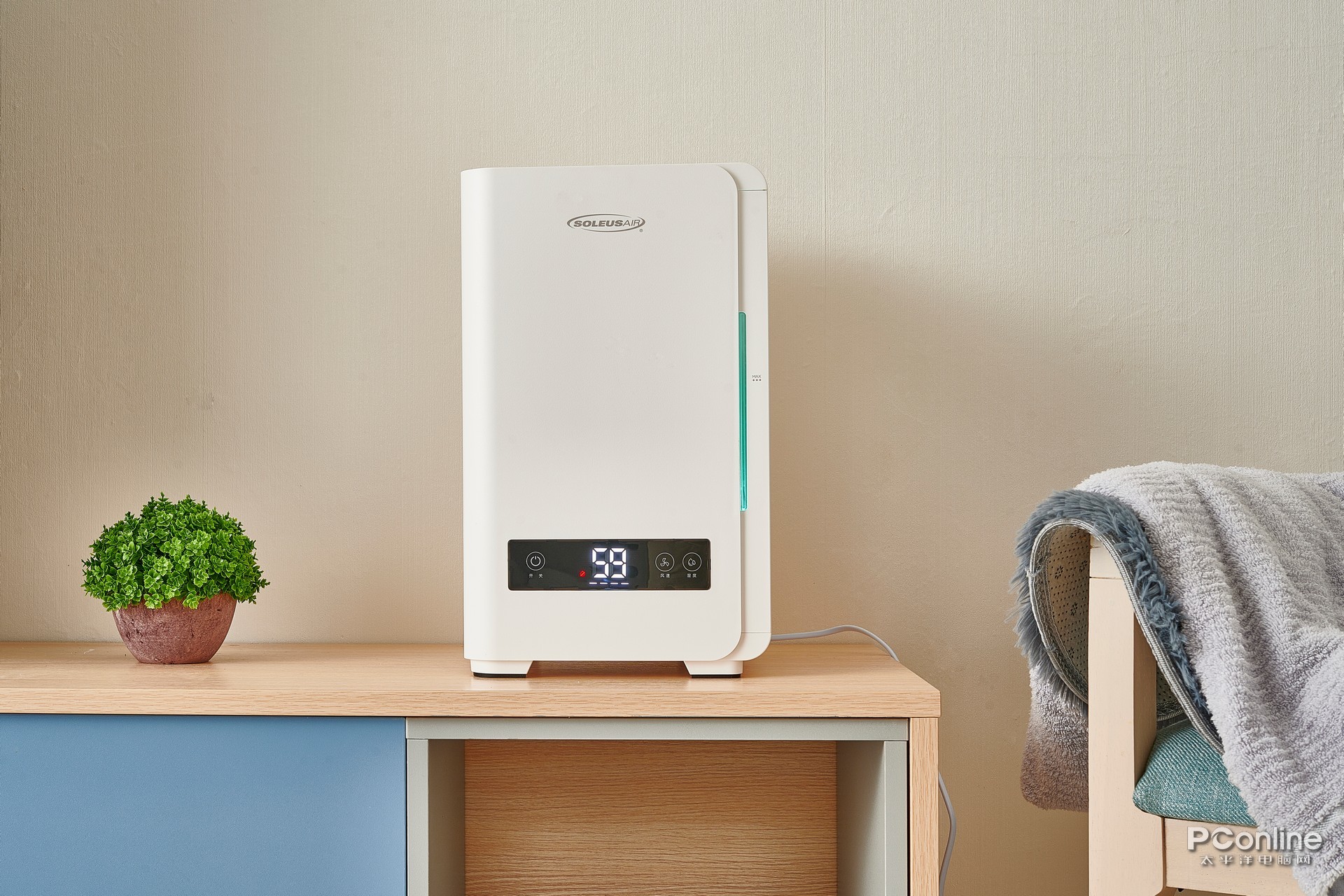
The white-background main image is your entry ticket to the marketplace. It controls the "first impression" in search results and category pages, and almost every major platform makes it a hard requirement — fail the spec and the listing gets pulled.
It's also the foundation for every downstream asset. Once you have a clean product cutout, you can derive lifestyle scenes, ad banners, and detail pages from that same image without reshooting.
So a white-background main image isn't "just snap something." It's the master file for your entire product visual library — get the master right and the rest is one-click reuse; get the master wrong and every downstream image needs rework.
Self-shot vs. AI-generated vs. manual cutout — three approaches compared
A lot of people get stuck on the first decision: hire a studio, buy a lightbox and do it yourself, generate the image with AI, or shoot it and cut it out by hand? Here's a full comparison:
| Method | Time cost | Equipment / tool barrier | Learning curve | Marketplace-ready | Best for |
|---|---|---|---|---|---|
| Studio / outsourced retoucher | 3–7 days, $30–$80+ per SKU | Sample shipping, lots of back-and-forth | None, but slow | High | High-AOV brands chasing a premium look |
| Self-shoot + manual edit | 30–60 minutes per image | Lightbox + backdrop, $30–$80 | Medium; need composition and white balance | High, but slow output | Sellers with photo experience and few SKUs |
| AI text-to-image product shot | 1–3 minutes per image | No physical sample, but easily "draws the wrong product" | Low | Medium; shape and color may drift | Pre-sale sellers without a sample yet |
| Phone shot + AI cutout | 5-second cutout, ~1 minute end-to-end | Just a phone | Very low | High; 1:1 to the real product | 99% of SMB sellers and solo shop owners |
| Manual cutout in Photoshop | 10–30 minutes per image | $12/mo for editing software | High; pen tool and channels | High | Designers |
The conclusion is straightforward: for the vast majority of sellers, phone shot + AI cutout is the most cost-effective route. Compared to studios that charge hundreds for a single batch and take three to five days, you can shoot a real product, swap to a clean white background in seconds, and list it the same day.
The full phone + AI workflow
I've run this workflow hundreds of times. Every step is trimmed to the minimum — just follow along:
- Find a wall by a window and shoot between 10am and 3pm in natural light. No ceiling lights, no fill lights — natural light is the cleanest. Place the product about a meter from the window with light coming from the side, not head-on (head-on blows out highlights).
- Lay down any sheet of white paper or a light-gray tablecloth as background. Important: you do not need a perfect white backdrop. The AI will swap the background later — you only need enough contrast between product and background. Dark products on light backgrounds, light products on dark backgrounds.
- Set the phone to 1:1 or 4:5, flash off, HDR off. HDR over-sharpens edges and makes the cutout harder. Tap the screen on the product to focus, long-press to lock exposure, then drag down slightly to underexpose a touch (this protects highlights).
- Shoot 3–5 angles. Front, side, and a 45-degree top-down. The extra shots cost you nothing and let you pick the cleanest one as the hero.
- Upload to an AI tool and pick the "white-background main image" template. Cutout + background swap in under 5 seconds. With a decent tool, cutout accuracy stays above 98% — even hair and fuzz are preserved.
- Color check and tweak. Look at the result: if the product looks too yellow vs. real life, cool the temperature; if it looks gray, add +5 contrast. The built-in "auto color" button usually handles it in one click.
- Export JPG / PNG at 800x800 or 1500x1500. Most platforms require at least 800px. On export, check "center product, 10% padding" and you'll land a compliant size by default.
End to end: 30 seconds to shoot, 5 seconds to cut out, 20 seconds to color-correct and export. You could refresh 20 main images for your shop tonight, all spec-compliant and ready to pass review.
One more note: don't chase "perfect lighting" at the shoot stage. AI cutouts are more forgiving than you'd think — as long as the product is sharp, in focus, and contrasts with the background, any messy background, table grain, or small clutter will get cleaned up automatically. Let AI handle "clean," and you handle "clear." That's the most valuable mindset in this workflow.
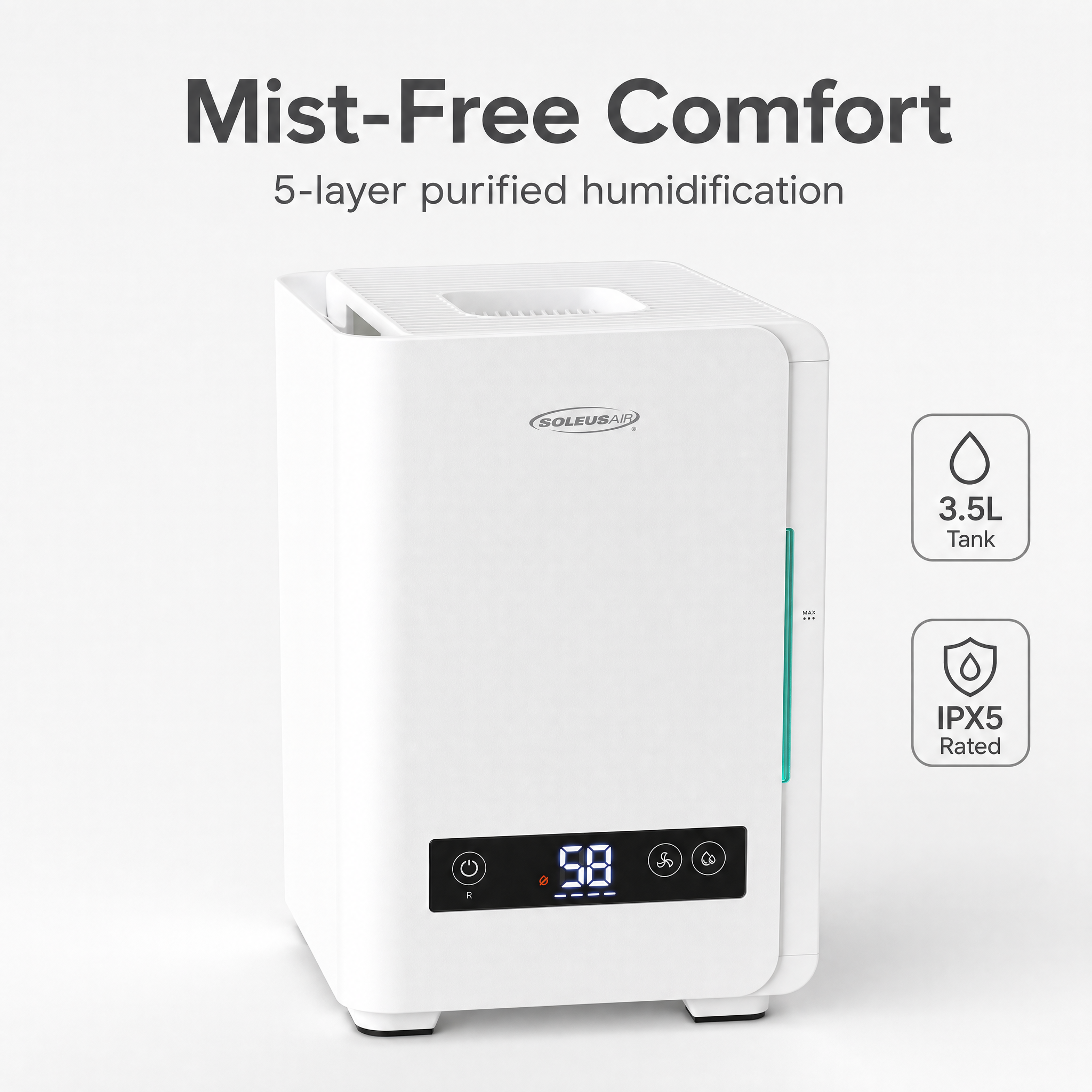
5 common AI cutout pitfalls
Not every image comes out perfect in 5 seconds. Here are the 5 traps I've hit and how to fix each one:
- Fringe halo: A gray or colored outline around the product edge — usually because the original background didn't contrast enough with the product. Fix: reshoot with a higher-contrast backdrop, or in the AI tool set "edge feather" to 1–2 px to soften it.
- Specular reflections: Highlights on metal or plastic get mistaken for "background" and punched out, leaving holes in the product. Fix: angle the light off-axis so you don't get a specular bounce dead-center on the product, or toggle the "preserve highlights" switch in the AI tool.
- Hair and fuzz: On plush toys or fur-trim jackets, edge detail gets shaved flat. Fix: switch to a "hair-level" high-precision cutout mode — it adds about 2 seconds but keeps roughly 30% more edge detail.
- Transparent objects: Behind glass cups or perfume bottles, the original background still shows through the body. Fix: at shoot time, place a paper the same color as the final white background behind the product, so what's visible through the bottle is already white — the cutout needs almost no cleanup.
- Drop shadow: The shadow under the product gets fully removed, making it "float" weightlessly. Fix: in the AI tool, add a "contact shadow" (a faint gray halo at the base) — instant grounding. Avoid heavy shadows; platforms can flag those as non-pure-white background.
Category breakdown: footwear / electronics / beauty — what changes for each
Different categories shift the shooting and cutout priorities. Here are the three most common:
Footwear — focus on silhouette and outsole texture.
- Angle: 45-degree front-side so the toe, body, and a sliver of outsole are all visible.
- Staging: laces tied cleanly with no frays, tongue pulled slightly forward for a "lifted" look.
- Cutout pitfall: laces and outsole tread tend to flatten out — use the high-precision mode.
- Contact shadow: mandatory, or the shoe will look like it's floating.
Electronics — focus on screen reflections and key detail.
- Angle: dead-front, flat-on, with a wallpaper visible on the screen (a black screen reads as blue).
- Staging: no cables or accessories — the main image is the product body only.
- Cutout pitfall: screen highlights blow out easily, so dial exposure down 1 stop at shoot time; glossy plastic edges produce halos, so pick a "hard edge" cutout mode.
- Bonus angle: in addition to the front, prepare a 30-degree top-down as a sub-image.
Beauty — focus on bottle text, cap reflections, and liquid color.
- Angle: square-on at 90 degrees, bottle upright, brand text facing the camera.
- Staging: cap closed, body wiped with a lint-free cloth (fingerprints are brutal on white backgrounds).
- Cutout pitfall: place white paper behind clear glass bottles; the gold rim on cream jars often reads as background and needs a manual "preserve" lasso pass.
- Color accuracy: for color-critical items like lipstick and foundation, always compare screen vs. real product before exporting.
Nail these three categories and you've covered roughly 80% of common SKUs. Other categories (food, home, apparel) follow the same logic — light, angle, background contrast — the same three-piece kit.
One detail that gets ignored: keep main image dimensions consistent across every SKU in your shop. The main image, sub-images, and video cover should all share the same ratio (1:1 square is recommended). Customers scanning a category page only feel "this shop looks professional" when the grid is uniform. A lot of sellers run 1:1 here, 4:5 there — the page looks messy and click-through drops. Spend 1 second checking ratio before export — it beats reworking everything later.
Another rookie mistake: no marketing copy on the main image. No "free shipping," no flash-sale countdowns, no coupon callouts. Platform rules are strict — any red/yellow promo border or "low price" copy detected and the listing gets deprioritized or pulled. Save all marketing messages for sub-images, the detail page, and campaign banners. The main image has one job: the product itself — clean, centered, white background.
Knock it out in 30 seconds with YunJing AI
After all that, the core idea is one line: a white-background main image should not cost you more than 1 minute. Shoot a real product on your phone, hand it to AI — 5-second cutout, automatic white background, automatic color correction, one-click export. The whole flow is faster than launching Photoshop.
What makes it even easier: YunJing AI bundles white-background main image, lifestyle scenes, social ad creatives, campaign banners, and A+ detail pages into a single workflow. Upload one product shot and you get the main image plus the full set of derivative assets — shop decoration, social campaigns, detail pages, all done in one pass. Templates for footwear, electronics, and beauty are built in: pick a category, upload, wait a few seconds, done.
If you're stuck on white-background images, or you're processing dozens of new images a week, please stop cutting them out one at a time. Run this phone + AI workflow today and use the saved hours on sourcing, copywriting, or reading your analytics — anything beats hand-masking products.
Want to try the workflow described above?
Start with YunJing AI →